2012年4月25日星期三


针对于桌面浏览器,大家都很清楚viewport是啥,就是去除了工具栏、状态栏、滚动条等所看到的网页区域。针对于iPhone屏幕,也是同样如此,webApp则是我们去除掉浏览器的本身UI后剩下的区域,所以对于本多webApp来说,如果不设法隐藏掉浏览器的UI的情况下,实际上的viewport将不会是标准的320px*480px(或者480px*320px),而是要减掉Button barTop status bar的高度。图1则显示了viewport相关信息。
1  viewport相关的参数

当然其实真实的情况下是还有URL bar的的影响,所以对于webApp来说,viewport的展示区域是非常有限的,我们必须采取相应的措施来增大viewport的显示区域,比如可以通过javascript来动态的隐藏掉URL的方法。
对于桌面浏览器来说,平日里我们打开的网站宽度基本上都是1000px左右,但是对于手机来说,不可能有这么大的屏幕显示区域,所以当我们通过手机浏览器访问web网页的时候,iPhone会自动的将网页定义为980px的宽度,这个宽度对于大多数的网页来说都是比较适合的。然后浏览器会自动的将网页缩小到屏幕可以容纳的大小。
当然我们在设计开发webApp的时候,更是希望展现出来的效果是那种比较符合用户习惯的。所以我们可以通过viewport属性来自定义控制webApp的宽度以及是否允许缩放等功能。想要添加这个功能,只需要在htmlhead标签中添加一句简单的meta即可。代码如下:
<meta id=“viewport” name=“viewport”  content=“width=device-width;
initial-scale=1.0;maximum-scale=1.0;user-scalable=no;” / >
下面分别对上面的几个属性做一个简单的介绍,id顾名思义就是定义该标签的标识名,name则是定义该metaviewportcontent里面的内容则是用于自定义告诉浏览器该如何处理该网页,其中width=device-width则是告诉浏览器该网页的宽度则是按照屏幕的宽度来设定,initial-scale=1.0则是告诉浏览器以11的方式来显示网页,maximum-scale=1.0则是告诉浏览器该应用被允许放大的最大比例是1.0.对应的它还有一个minimum-scale属性来定义该网页被允许缩小的最小比例。User-scale则是告诉浏览器是否允许用户缩小或者放大该网页。本例设置为“no”,则说明不允许用户使用缩放功能。通过上面的定义,则保证了该网页将会以原来的大小来加载。
通过iPhone来显示应用的时候,实际上并不像我们桌面的浏览器一样,可以有滚动条的,其实是不存在滚动条的,有些朋友可能会认为是不是它隐藏了滚动条,答案是no,其实不是隐藏,而是他压根就不支持滚动条,我们可以通过手指滑动来滚动应用,但是实际上浏览器从一开始就将整个网页全部加载了进来,只是我们拖动的不是页面,而是viewport

vertical-align属性学习


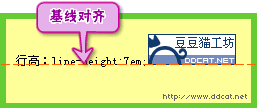
   如果行内含有图片和文字,在浏览器内浏览时,读者可以发现文字和图片在垂直方向并不是沿中线居中,而是沿基线对齐,如图7-34所示。 
/web/css/text/img/text_034.gif

图7-34 文字和图片内容默认垂直对齐方式为基线对齐 

这是因为,元素默认的垂直对齐方式为基线对齐(vertical-align: baseline)。 


7.4.1 语法 

vertical-align属性的具体定义列表如下: 
语法:        vertical-align : baseline | sub | super | top | text- top | middle | bottom | text-bottom | <百分比> | <长度> | inherit 
说明:        设置元素内容的垂直对齐方式 
值:        baseline:基线对齐;sub:下标;super:上标;top:顶端对齐;text-top:与文本的顶端对齐;middle:中部对齐;bottom:底端对齐;text-bottom:文本的底端对齐; 
百分比和长度:CSS2,可为负数。 
初始值:        baseline 
继承性:        不继承 
适用于:        行内元素和单元格(table-cell)元素 
媒体:        视觉 
计算值:        百分比和长度值为绝对长度;其他同指定值 

此处需要特别注意的是:垂直对齐属性只对行内元素有效。例如有如下代码: 
<p style=”vertical-align:super;”>垂直对齐<span>上标</span></p>

<p>元素默认为块级元素,因此在浏览器内浏览时将不会有任何变化。而如下代码: 
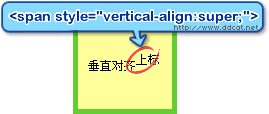
<p>垂直对齐<span style="vertical-align:super;">上标</span></p>

<span>元素默认为行内元素,因此显示如图7-35所示。 
/web/css/text/img/text_035.gif

图7-35垂直对齐属性只对行内元素有效 
行内元素还包括图片、表单输入元素等,同时,垂直对齐不能被继承。 


7.4.2 属性值详解 

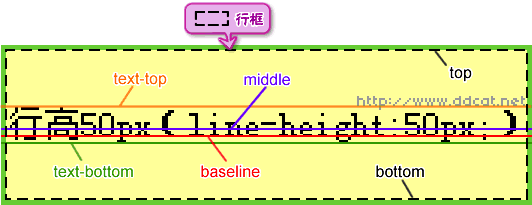
在[7.3 行高 line-height]一节中,曾经介绍了文本的基线、顶线、中线和底线,还有内容区域、行内框和行框,而本节的垂直对齐和这几个概念密切相关。 
垂直对齐主要属性值的表现形式如图7-36所示。 
/web/css/text/img/text_036.gif

图7-36 垂直对齐的主要属性值示意 

1. 基线对齐(vertical-align : baseline) 
基线对齐(vertical-align : baseline)使元素的基线同父元素的基线对齐,例如有如下代码: 
p strong {
line-height : 7em;
font-size : 2em;
vertical-align : baseline;
}
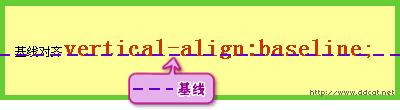
<p>基线对齐<strong>vertical-align:baseline;</strong></p>

则其显示如图7-37所示。 
/web/css/text/img/text_037.gif

图7-37 基线对齐 
而像图片或者输入框这样的元素,本身没有基线,则将其底端同父元素的基线对齐,如图7-34所示。 


2. 顶端对齐(vertical-align : top) 

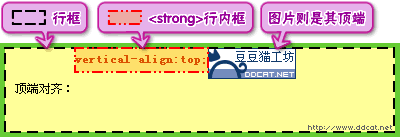
顶端对齐(vertical-align : top)是将元素的行内框的顶端与行框的顶端对齐,例如有如下代码: 
p {
line-height : 7em;
}
p strong {
vertical-align:top;
line-height:2em;
}
p img {
vertical-align : top;
}
<p>顶端对齐:<strong>vertical- align:top;</strong><img src="img/ddcat_anim.gif" alt="图 片" width="88" height="31" /></p>

则其显示如图7-38所示。 
/web/css/text/img/text_038.gif

图7-38 顶端对齐 

对于<strong>元素,不仅设定了vertical-align,还设定了line-height,这是因为在本章 [7.3.2 内容区域、行内框和行框]一节中关于行内框的说明中介绍过,行高可以改变行内框的高度,如果不重新设定行高, 则<strong>元素继承了父元素<p>的行高,因此行内框高和行框的高度是一样的,则顶端对齐将看不出效果。 


3. 文本顶端对齐(vertical-align : text-top) 

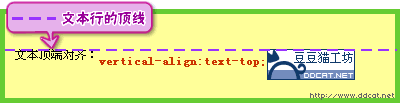
文本顶端对齐(vertical-align : text-top)是将元素行内框的顶端同文本行的顶线对齐,例如有如下代码,其显示如图7-39所示。 
p {
line-height : 7em;
}
p strong {
vertical-align : text-top;
line-height : 2em;
}
p img {
vertical-align : text-top;
}
<p>文本顶端对齐:<strong> vertical- align:top;</strong><img src="img/ddcat_anim.gif" alt="图 片" width="88" height="31" /></p>

/web/css/text/img/text_039.gif

图7-39 文本顶端对齐 


4. 底端对齐(vertical-align : bottom) 

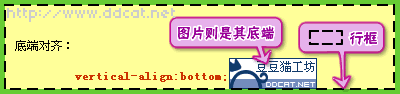
底端对齐(vertical-align : bottom)与顶端对齐(vertical-align : top)相反,如图7-40所示。 
/web/css/text/img/text_040.gif

图7-40 底端对齐 


5. 文本底端对齐(vertical-align : text-bottom) 

文本底端对齐(vertical-align : text-bottom)与文本顶端对齐(vertical-align : text-top)相反,如图7-41所示。 
/web/css/text/img/text_041.gif

图7-41 文本底端对齐 


6. 中间对齐(vertical-align : middle) 

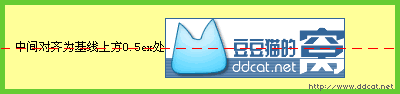
中间对齐(vertical-align : middle)通常使用在图片上,将图片的垂直方向的中线与文本行的中线对齐,例如有XHTML代码如下,其显示如图7-42所示。 
p img { vertical-align : middle; }
<p>中间对齐为基线上方0.5ex处<img src="img/ddcat_ad.gif" alt="图片" width="180" height="60" /></p>

/web/css/text/img/text_042.gif

图7-42 中间对齐 

中线的定义为:中线位于基线的上方,与基线的距离为小写字母x高度(即ex)的一半,如图7-36所示。而ex同字体尺寸相关,大部分浏览器认为1ex = 0.5em,因此会将基线以上四分之一em处作为中线来对齐。 

注意:同在行高显示上的差别一样,在中间对齐上,各浏览器之间也稍有些差异。


7. 上标和下标 

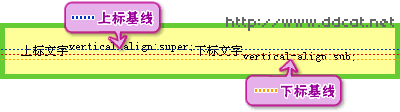
上标(vertical-align:super)使元素的基线(替换元素的底端)相对于父元素的基线升高,下标(vertical-align:sub)使元素的基线降低,移动的幅度CSS规范中没有规定,由浏览器来决定。例如有如下代码,其显示如图7-43所示。 
<p>上标文字<span style="vertical- align:super;">vertical-align:super;</span>下标文 字<span style="vertical-align:sub;">vertical-align:sub;</span></p>

/web/css/text/img/text_043.gif

图7-43 上标和下标 

上下标不会改变元素文字的尺寸大小。 


8. 长度值和百分比 

和上下标类似,长度值和百分比值可使元素的基线(替换元素的底端)相对于父元素的基线升高(正值)或者降低(负值)。 
上下标的移动尺寸是由浏览器确定的,而设定长度值或者百分比,可以精确控制文字上下移动的幅度。 
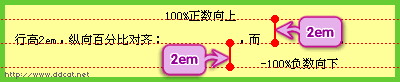
百分比与行高有关,例如有如下代码,其显示如图7-44所示。 
p { line-height : 2em; }
<p>行高2em,纵向百分比对齐:<span style="vertical-align:100%;">100% 正数向上</span>,而<span style="vertical-align:-100%;">-100%负数向下& lt;/span>。</p>

/web/css/text/img/text_044.gif

图7-44 百分比对齐 
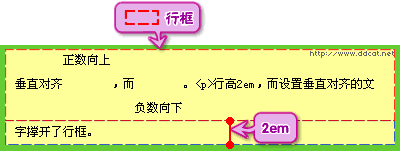
设置垂直对齐会影响到行框高,例如有如下代码,其显示如图7-45所示。 
p { line-height : 2em; }
<p>垂直对齐<span style="vertical-align:2em;">正数向上</span& gt;,而<span style="vertical-align:-2em;">负数向下</span>。&lt; p&gt;行高2em,而设置垂直对齐的文字撑开了行框。</p>

/web/css/text/img/text_045.gif

图7-45 垂直对齐对行框的影响 
注意:在IE中设定百分比或者数值对齐会造成内容的叠加混乱,如图7-46所示。

/web/css/text/img/text_046.gif

haslayout简介


那我们来看一下什么haslayout
haslayoutIE渲染引擎的一个内部组成部分。在IE中,一个元素计算大小和组织内容,要么对自身的内容进行计算大小和组织内 容,要么依赖于父元素来计算尺寸和组织内容。为了调节这两个不同的概念,渲染引擎采用了haslayout的属性,属性值可以为truefalse。当 一个元素的 haslayout属性值为true时,我们说这个元素有一个布局(layout)。
           ie下有一些标签是本身就拥有haslyout的,大家以后用到的时候要注意一下。例如:
               具有haslyoutHTML标签 有:<table><td><body><img><hr><input><select><textarea><button><iframe><embed><object> <applet><marquee>< html>< tr>< th><fieldset>< frameset><frame> 等(未完全统计)。

           那是我们怎么才可以激活haslayout
1.    通过设置CSS能够获得的haslayout的属性有:display: inline-block;height: (任何值除了auto);float: (leftright);position: absolute; width: (任何值除了auto);writing-mode: tb-rl;zoom: (normal外任意值); min-height: (任意值); max-height: (none外任意值);min-width: (任意值);max-width: (none外任意值);overflow: (visible外任意值);overflow-x: (visible外任意值);overflow-y: (visible外任意值); position: fixed;(未完全统计)
2.    对于内联元素(默认即为内联的元素,如span,或display:inline; 的元素)widthheight只在IE5.x下和IE6或更新版本的quirks模式下触发hasLayout。而对于IE6,如果浏览器运行于标 准兼容模式(具有Doctype的模式)下,内联元素会忽略widthheight属性,所以设置widthheight不能在此种情况下令该元素具 有layout
3.    zoom总是可以触发hasLayout,但是在IE5.0中不支持。
4.    这个元素的高度为1%(height:1%;)。但是在这个元素的overflow属性被设置为visible时,就失效了。
5.    IE7来说,最好的方法是设置元素的最小高度为0px(min-height0px;)

如果大家想进一步了解haslayout的问题,可以参加一下网站:

Float Squeeze Weird Gap Bug


1.    Float Squeeze Weird Gap Bug,简称为浮动挤压bug
产生bug的浏览器:ie6ie7
描述:外层块级元素包含数目超过3个的浮动内联元素,且内联元素width大于外层块级元素。就在最后一个内联元素和倒数第二个内联元素之间有间距。
Demo
HTML Code:
    <p>
        <span>A</span>
        <span>B</span>
        <span>C</span>
        <span>D</span>
    </p>
CSS Code
p {
    width: 100px;
}
 
span {
    border: 1px solid #000;
    float: left;
    width: 120px;
}
·       预览:


解决方案:
1.    删除内联元素之间的空格。

<p
><span>A</span
><span>B</span
><span>C</span
><span>D</span
></p>
就不会有问题了。
2.    减少内联元素的个数(小于3
3.    增加外层块级元素的width(大于浮动内联元素的width
4.    内层元素换成块级标签(外层元素不能是p标签)
原因:ie6-7下对于这种情况,有个浮动挤压的问题。将标签内的文本节点有个挤压的layout

escape,encodeURI, encodeURIComponent的区别


escape 方法:
       把所有的空格标点重音字符以及任何非ASCII字符都会被替换为带着%xx 16进制)编码,返回UNICODE格式的字符串值
 encodeURI 方法:
       不对以下字符编码: ":", "/", ";", and "?" 而可以用encodeURIComponent对这些字符编码,返回URI编码。

encodeURIComponent 方法:
       encodeURIComponent 和以上两者解释是一样的,只是可以给更多的字符进行编码,可以编码“/,
不能编码只有 ~!*()'

代码:
escape('~!@#$%^&*(){}[]=:/,;?+\'"\\') 
//%7E%21@%23%24%25%5E%26*%28%29%7B%7D%5B%5D%3D%3A/%2C%3B%3F+%27%22%5C 
encodeURI('~!@#$%^&*(){}[]=:/,;?+\'"\\'); 
//~!@#$%25%5E&*()%7B%7D%5B%5D=:/,;?+'%22%5C 
encodeURIComponent('~!@#$%^&*(){}[]=:/,;?+\'"\\'); 
//~!%40%23%24%25%5E%26*()%7B%7D%5B%5D%3D%3A%2F%2C%3B%3F%2B'%22%5C

2011年12月20日星期二

一个极为高效的js模板JavaScript Micro-Templating--john resig---------转载自


JavaScript Micro-Templating


I've had a little utility that I've been kicking around for some time now that I've found to be quite useful in my JavaScript application-building endeavors. It's a super-simple templating function that is fast, caches quickly, and is easy to use. I have a couple tricks that I use to make it real fun to mess with.
Here's the source code to the templating function (a more-refined version of this code will be in my upcoming book Secrets of the JavaScript Ninja):
// Simple JavaScript Templating
// John Resig - http://ejohn.org/ - MIT Licensed
(function(){
  var cache = {};

  this.tmpl = function tmpl(str, data){
    // Figure out if we're getting a template, or if we need to
    // load the template - and be sure to cache the result.
    var fn = !/\W/.test(str) ?
      cache[str] = cache[str] ||
        tmpl(document.getElementById(str).innerHTML) :
   
      // Generate a reusable function that will serve as a template
      // generator (and which will be cached).
      new Function("obj",
        "var p=[],print=function(){p.push.apply(p,arguments);};" +
     
        // Introduce the data as local variables using with(){}
        "with(obj){p.push('" +
     
        // Convert the template into pure JavaScript
        str
          .replace(/[\r\t\n]/g" ")
          .split("<%").join("\t")
          .replace(/((^|%>)[^\t]*)'/g, "$1\r")
          .replace(/\t=(.*?)%>/g, "'
,$1,'")
          .split("\t").join("'
);")
          .split("
%>").join("p.push('")
          .split("\r").join("\\'
")
      + "
');}return p.join('');");
 
    // Provide some basic currying to the user
    return data ? fn( data ) : fn;
  };
})();
You would use it against templates written like this (it doesn't have to be in this particular manner - but it's a style that I enjoy):
<script type="text/html" id="item_tmpl">
  <div id="<%=id%>" class="<%=(i % 2 == 1 ? " even" : "")%>">
    <div class="grid_1 alpha right">
      <img class="righted" src="<%=profile_image_url%>
"/>
    </div>
    <div class="grid_6 omega contents">
      <p><b><a href="/<%=from_user%>"><%=from_user%></a>:</b> <%=text%></p>
    </div>
  </div>
</script>
You can also inline script:
<script type="text/html" id="user_tmpl">
  <% for ( var i = 0; i < users.length; i++ ) { %>
    <li><a href="<%=users[i].url%>"><%=users[i].name%></a></li>
  <% } %>
</script>
Quick tip: Embedding scripts in your page that have a unknown content-type (such is the case here - the browser doesn't know how to execute a text/html script) are simply ignored by the browser - and by search engines and screenreaders. It's a perfect cloaking device for sneaking templates into your page. I like to use this technique for quick-and-dirty cases where I just need a little template or two on the page and want something light and fast.
and you would use it from script like so:
var results = document.getElementById("results");
results.innerHTML = tmpl("item_tmpl", dataObject);
You could pre-compile the results for later use. If you call the templating function with only an ID (or a template code) then it'll return a pre-compiled function that you can execute later:
var show_user = tmpl("item_tmpl"), html = "";
for ( var i = 0; i < users.length; i++ ) {
  html += show_user( users[i] );
}
The biggest falling-down of the method, at this point, is the parsing/conversion code - it could probably use a little love. It does use one technique that I enjoy, though: If you're searching and replacing through a string with a static search and a static replace it's faster to perform the action with .split("match").join("replace") - which seems counter-intuitive but it manages to work that way in most modern browsers. (There are changes going in place to grossly improve the performance of .replace(/match/g, "replace") in the next version of Firefox - so the previous statement won't be the case for long.)
Feel free to have fun with it - I'd be very curious to see what mutations occur with the script. Since it's so simple it seems like there's a lot that can still be done with it


参考网址:http://ejohn.org/blog/javascript-micro-templating/